Ready to create your first QR code? This guide will walk you through the process, from choosing the right type of code to customizing its look and feel. In just a few minutes, you'll have a powerful, engaging QR code ready to share with the world.
Let's get started on the Dashboard page.
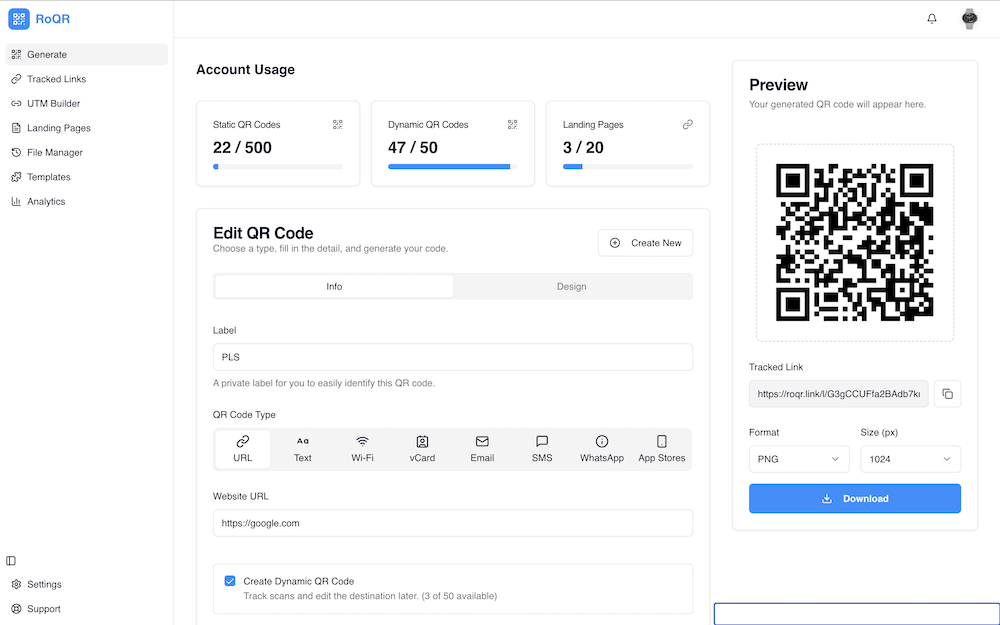
Choose you QR Code type
The first thing you'll do is select what kind of information you want your QR code to hold. This determines what happens when a user scans it.
On the creation form, you'll see a selection of QR code types. Here are some of the most common ones:
- URL: This is the most popular option. It directs users to a specific website address.
- Text: Displays a simple plain text message when scanned.
- WiFi: Allows users to automatically connect to a WiFi network without having to manually enter the SSID and password. This is perfect for cafes, offices, or guest networks.
- And more: You'll find options for vCards, PDFs, App Store links, and others.
For this guide, let's select URL.
Enter your content
Next, you'll provide the content for your QR code. Since we chose "URL," you will see a field labeled "Website URL."
- Paste the full URL (e.g.,
https://www.yourwebsite.com) into this field. - AI-Powered Suggestions: If you're creating a code from a block of text, our smart assistant can suggest an appropriate action or link to associate with it, helping you create more effective codes.
Customize your design
Now it's time to make your QR code stand out. In the design section of the form, you can:
- Change Colors: Select a new color for the QR code's pattern and background to match your brand.
- Modify the Shape: Adjust the style of the QR code's corners and body.
- Add Your Logo: Upload your company logo, which will be placed in the center of the QR code. Our tool automatically ensures the code remains scannable.
A well-designed QR code not only looks better but also builds trust with your audience.
Configure your options
This is where you unlock the full power of dynamic QR codes. You'll see a range of options to supercharge your code:
- Custom Alias: Instead of a random short link, you can create a memorable one (e.g.,
yourbrand.com/summer-sale). - Scheduling: Set your QR code to only be active during a specific date range. Perfect for limited-time offers.
- One-Time Scannable: Create a code that expires after a single scan, ideal for tickets or exclusive content.
- UTM Builder: Add tracking parameters to your link to measure campaign performance in Google Analytics.
- Pixel Tracking: For advanced marketing, add a tracking pixel to retarget users who scan your code.
You don't have to configure these now, as you can always edit them later.
Save and Download your code
Once you're happy with your setup, click the "Save QR Code" button.
Your new QR code will be saved to your dashboard, and you'll immediately see a preview. From here, you can:
- Download: Get your QR code in high-resolution formats like PNG or SVG, which is perfect for printing. You can also choose from various sizes (512px up to 4096px).
- Share: Grab the short link to share directly.
- Edit: Click on the code in your history to go back and change its destination, design, or any of its advanced options at any time.
Congratulations! You've successfully created a dynamic, customized QR code. Now you're ready to deploy it in your campaigns and start tracking the results.